
A-I-DESIGN Organizational Chart
Use Cases
The AI Studio module can be used to:
- transform a personal sketch into a realistic visual or 3D presentation;
- dress a mannequin in a sketched garment;
- apply a fabric, pattern, or texture to a garment;
- create different views of the same product;
- create accessories, backgrounds, or graphic compositions;
- generate multiple concepts from a single idea;
- precisely modify each variation;
- create a cohesive collection based on a project;
- rapidly prepare visuals that would take days to produce using a traditional image editor.
Use Cases
The AI Suggestions Workshop module allows you to:
- quickly search for creative ideas;
- generate proposals for multiple elements of a collection;
- obtain suggestions for garments, accessories, materials, or decorative elements;
- compare different artistic directions;
- create an image library organized by category;
- prepare the visual foundation for a future project;
- transfer a suggestion to the AI Studio for further development or modification;
- accelerate the research, inspiration, and design phases.
Complementarity of the two modules
AI Suggestions Workshop
↓
Idea exploration and rapid generation of proposals
↓
Selection of a promising suggestion
↓
Transfer to AI Studio
↓
Customization, modification, and creation of variations
↓
Project organization and collection creation
↓
Saving the final result
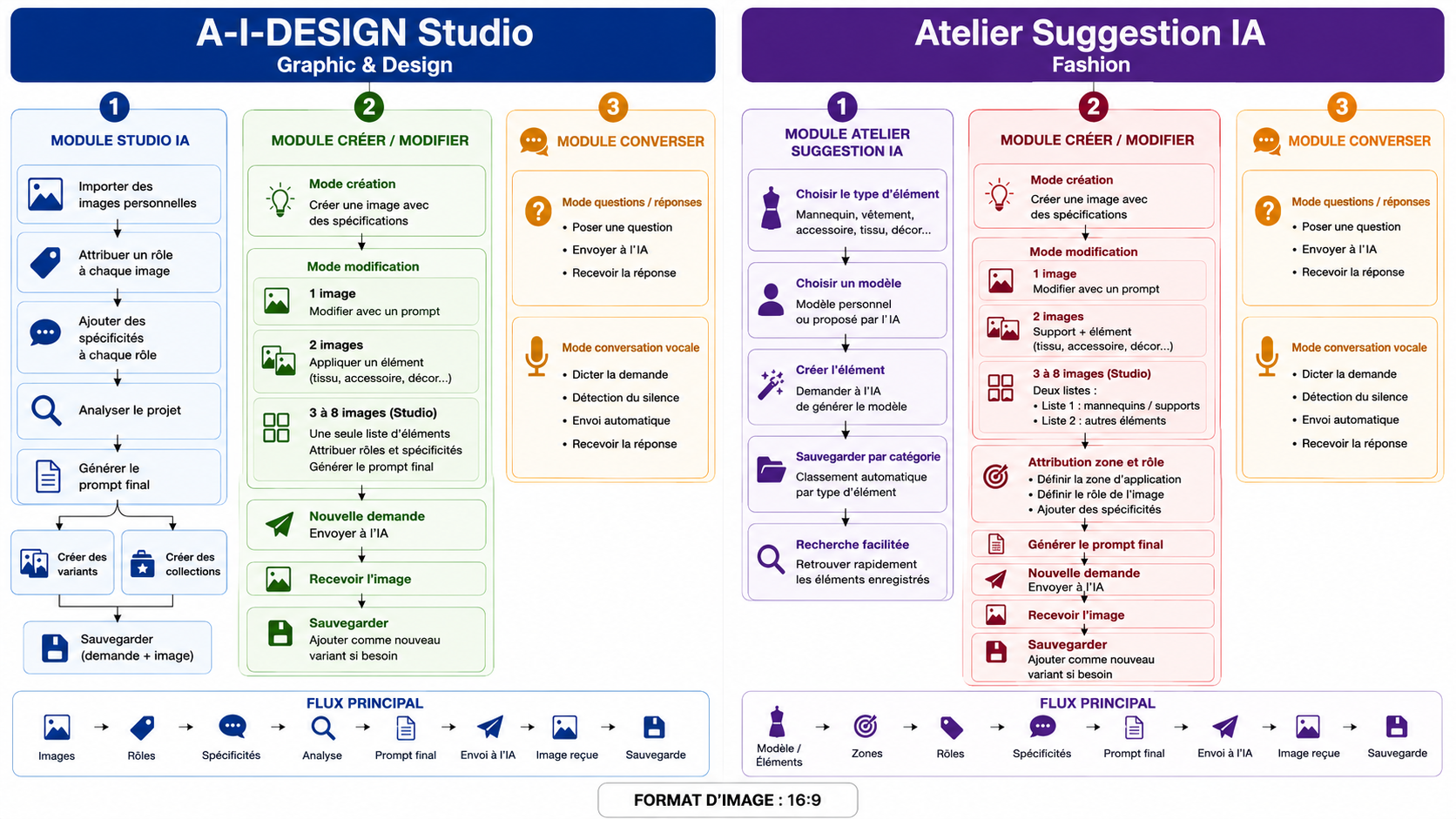
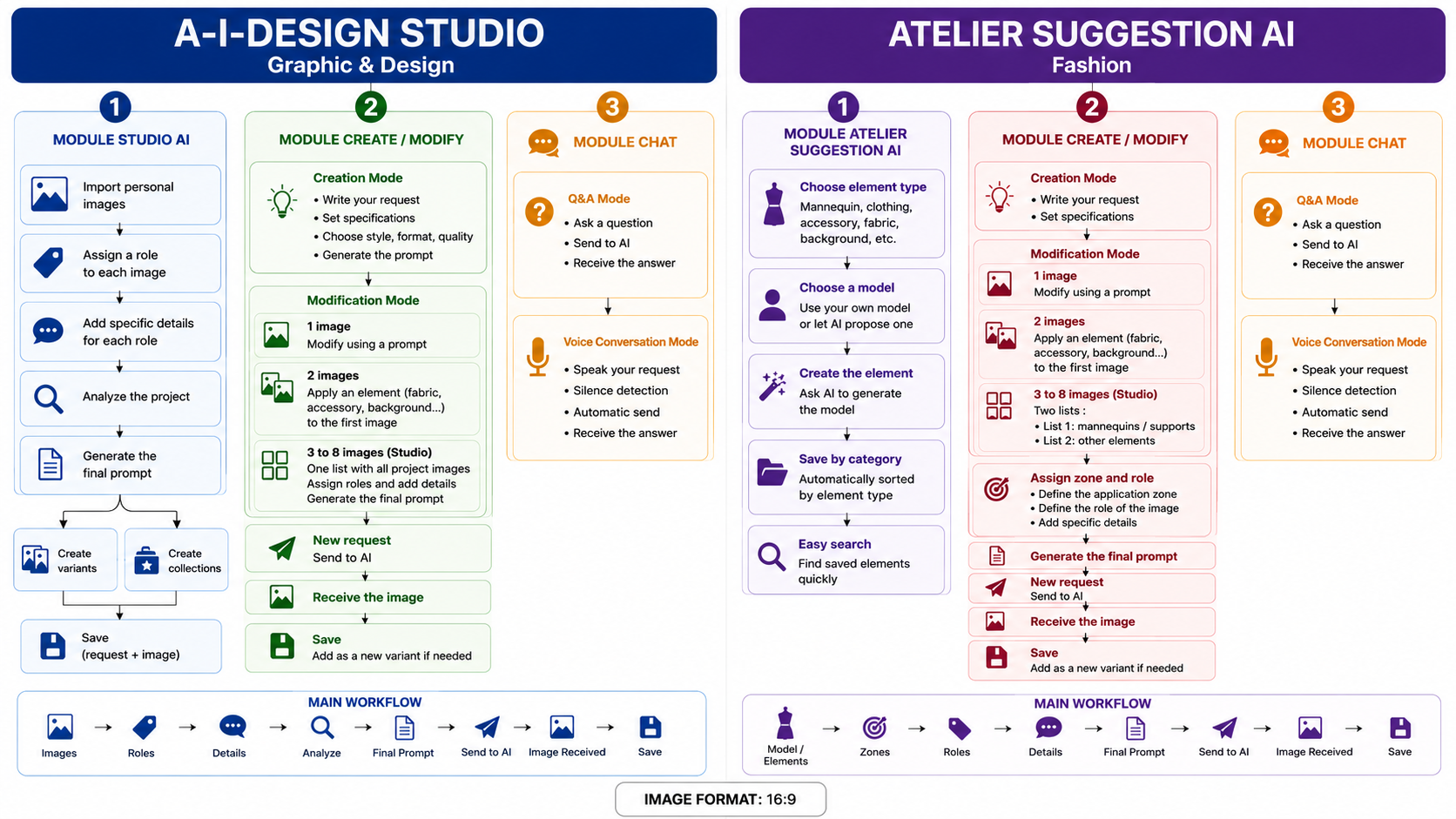
FLOWCHART 1
A-I-DESIGN STUDIO (Graphic & Design)
The main distinction between the two environments is as follows:
└── General graphic creation
Combination of images, roles, specifications,
variants, and collections
AI SUGGESTION WORKSHOP
│
└── Fashion-oriented creation
Models, clothing, accessories, fabrics,
application areas, and categorization
The general operation of this first environment can be summarized as follows:
Import images
↓
Assign roles
↓
Add specifications
↓
Analyze the project
↓
Generate the final prompt
↓
Send the request to the AI
↓
Receive the image
↓
Save the result
↓
Create variants or collections
A-I-DESIGN STUDIO
│
├── 1. AI STUDIO
│ │
│ ├── Creating a graphic project
│ │ │
│ │ ├── Import one or more personal images
│ │ ├── Select images required for the project
│ │ ├── Assign a role to each image
│ │ └── Add a specific detail to each role if necessary
│ │
│ ├── Preparing the request
│ │ │
│ │ ├── Check selected images
│ │ ├── Check assigned roles
│ │ ├── Check added specifications
│ │ ├── Launch project analysis
│ │ └── Automatically generate the final prompt
│ │
│ ├── Creating variants
│ │ │
│ │ ├── Select a reference image
│ │ ├── Add a specific request for the variant
│ │ ├── Optionally add an additional personal image
│ │ ├── Generate the new variant
│ │ └── Save the variant to the project
│ │
│ └── Managing collections
│ │
│ ├── Create a collection within the project
│ ├── Group multiple variants
│ ├── Categorize proposals by theme or usage
│ └── Quickly recall a saved collection
│
├── 2. CREATE / EDIT
│ │
│ ├── Creation Mode
│ │ │
│ │ ├── Draft a request
│ │ ├── Define visual specifications
│ │ ├── Choose style, format, and quality
│ │ ├── Generate the prompt
│ │ └── Send the request to the AI
│ │
│ ├── Edit Mode
│ │ │
│ │ ├── Edit a single image
│ │ │ │
│ │ │ ├── Recall an existing image
│ │ │ ├── Describe changes in the prompt
│ │ │ └── Generate the new version
│ │ │
│ │ ├── Edit two images
│ │ │ │
│ │ │ ├── First image: model or base image
│ │ │ ├── Second image: canvas, fabric, accessory, or background
│ │ │ ├── Describe the action to apply to the first image
│ │ │ └── Example: fill a garment with a pattern
│ │ │ or add an accessory to the mannequin
│ │ │
│ │ └── Editing three to eight images — Studio Mode
│ │ │
│ │ ├── Open project details
│ │ ├── Display all project images
│ │ ├── Load images into a single list
│ │ │ │
│ │ │ ├── Bases
│ │ │ ├── Characters
│ │ │ ├── Accessories
│ │ │ ├── Backgrounds
│ │ │ ├── Textures
│ │ │ └── Other graphic elements
│ │ │
│ │ ├── Select each image
│ │ ├── Assign a role to each image
│ │ ├── Optionally enhance the role
│ │ │ │
│ │ │ ├── Reduce the element's size
│ │ │ ├── Modify its color
│ │ │ ├── Modify its position
│ │ │ └── Specify its use in the composition
│ │ │
│ │ └── Generate the final prompt
│ │
│ ├── Final prompt generation
│ │ │
│ │ ├── Automatically lists project images
│ │ ├── Incorporates assigned roles
│ │ ├── Integrates additional specifications
│ │ ├── Structures the request by element
│ │ └── Avoids manual rewriting of all instructions
│ │
│ └── Sending and saving
│ │
│ ├── Review images, roles, and specifications
│ ├── Click "New request"
│ ├── Wait to receive the generated image
│ ├── Click "Save request + image"
│ └── For a new version:
│ │
│ ├── Modify the request
│ ├── Submit a new generation
│ └── Save the image as a new project variant
│
└── 3. CONVERSE
│
├── Question/Answer mode
│ │
│ ├── Type or dictate a question
│ ├── Send the request to the AI
│ └── Wait for and view the answer
│
└── Voice conversation mode
FLOWCHART 2
AI SUGGESTION WORKSHOP (Fashion)
The second environment operates according to this logic:
Select a model or base
↓
Add clothing, fabrics, accessories, or background elements
↓
Assign a zone to each image
↓
Assign a role to each image
↓
Add necessary specifications
↓
Generate the final prompt
↓
Send the request to the AI
↓
Receive and save the image
↓
Classify the result or create new variants
AI SUGGESTION WORKSHOP
│
├── 1. AI SUGGESTION WORKSHOP
│ │
│ ├── Selection of elements to create
│ │ │
│ │ ├── Male model
│ │ ├── Female model
│ │ ├── Dress
│ │ ├── Jacket or blazer
│ │ ├── Skirt
│ │ ├── Trousers
│ │ ├── Top or corset
│ │ ├── Coat
│ │ ├── Bag
│ │ ├── Shoes
│ │ ├── Hat
│ │ ├── Jewelry
│ │ ├── Glasses
│ │ ├── Gloves
│ │ ├── Canvas or fabric
│ │ └── Background/Setting
│ │
│ ├── Selection of base model
│ │ │
│ │ ├── Use a personal model
│ │ └── Ask the AI to propose a new model
│ │
│ ├── Model usage
│ │ │
│ │ ├── Personal model serves as the base
│ │ ├── AI-generated model serves as the base
│ │ └── Clothing and accessories are applied to the base
│ │
│ └── Automatic classification
│ │
│ ├── Each creation is identified by type
│ ├── The image is saved in the corresponding folder
│ ├── Elements are grouped by category
│ └── Future searches are facilitated
│
├── 2. CREATE / MODIFY
│ │
│ ├── Creation Mode
│ │ │
│ │ ├── Draft a request
│ │ ├── Define model characteristics
│ │ ├── Choose style and visual parameters
│ │ ├── Generate the prompt
│ │ └── Send the request to the AI
│ │
│ ├── Edit Mode
│ │ │
│ │ ├── Editing a single image
│ │ │ │
│ │ │ ├── Recall an image
│ │ │ ├── Describe the desired modification
│ │ │ └── Send the request
│ │ │
│ │ ├── Editing two images
│ │ │ │
│ │ │ ├── First image: mannequin or base
│ │ │ ├── Second image: fabric, canvas,
│ │ │ │ accessory, or background
│ │ │ ├── Specify the action to perform
│ │ │ └── Example: apply fabric to a garment
│ │ │ or add a bag to the mannequin
│ │ │
│ │ └── Editing three to eight images — Studio Mode
│ │ │
│ │ ├── Open project details
│ │ ├── Display the list of images used
│ │ │
│ │ ├── First list: mannequins and bases
│ │ │
│ │ └── Second list: additional elements
│ │ │
│ │ ├── Garments
│ │ ├── Accessories
│ │ ├── Canvas
│ │ ├── Fabrics
│ │ ├── Backgrounds
│ │ └── Other elements
│ │
│ ├── Assigning an area and a role
│ │ │
│ │ ├── Select an image
│ │ ├── Define the target area
│ │ ├── Define the image's role
│ │ └── Optionally add a specific detail
│ │
│ ├── Example: using a mannequin
│ │ │
│ │ ├── Image: mannequin or base
│ │ ├── Area: global
│ │ ├── Role: main base or main garment
│ │ └── Optional specific detail: retain the pose,
│ │ modify the color,
│ │ change the framing
│ │
│ ├── Example: filling a garment with a pattern
│ │ │
│ │ ├── Image of the garment or base item
│ │ │ │
│ │ │ ├── Area: overall
│ │ │ └── Role: base item or main garment
│ │ │
│ │ └── Image of the fabric or pattern
│ │ │
│ │ ├── Area: top, bottom, collar, sleeve, or selected area
│ │ └── Role: texture, fabric, or graphic fill
│ │
│ ├── Preparing the final prompt
│ │ │
│ │ ├── Check all images
│ │ ├── Check assigned areas
│ │ ├── Check roles
│ │ ├── Check specific details
│ │ └── Automatically generate the final prompt
│ │
│ └── Submission and saving
│ │
│ ├── Click "New Request"
│ ├── Send the project to the AI
│ ├── Wait to receive the image
│ ├── Click "Save Request + Image"
│ └── In case of further modification:
│ │
│ ├── Modify settings
│ ├── Generate a new image
│ └── Add it as a variant to the current project
│
└── 3. CONVERSING
│
├── Question/Answer mode
│ │
│ ├── Write or dictate a request
│ ├── Send the request
│ └── View the AI's response
│
└── Voice conversation mode
│
├── Dictate the request

